
Document scanning (OCR)
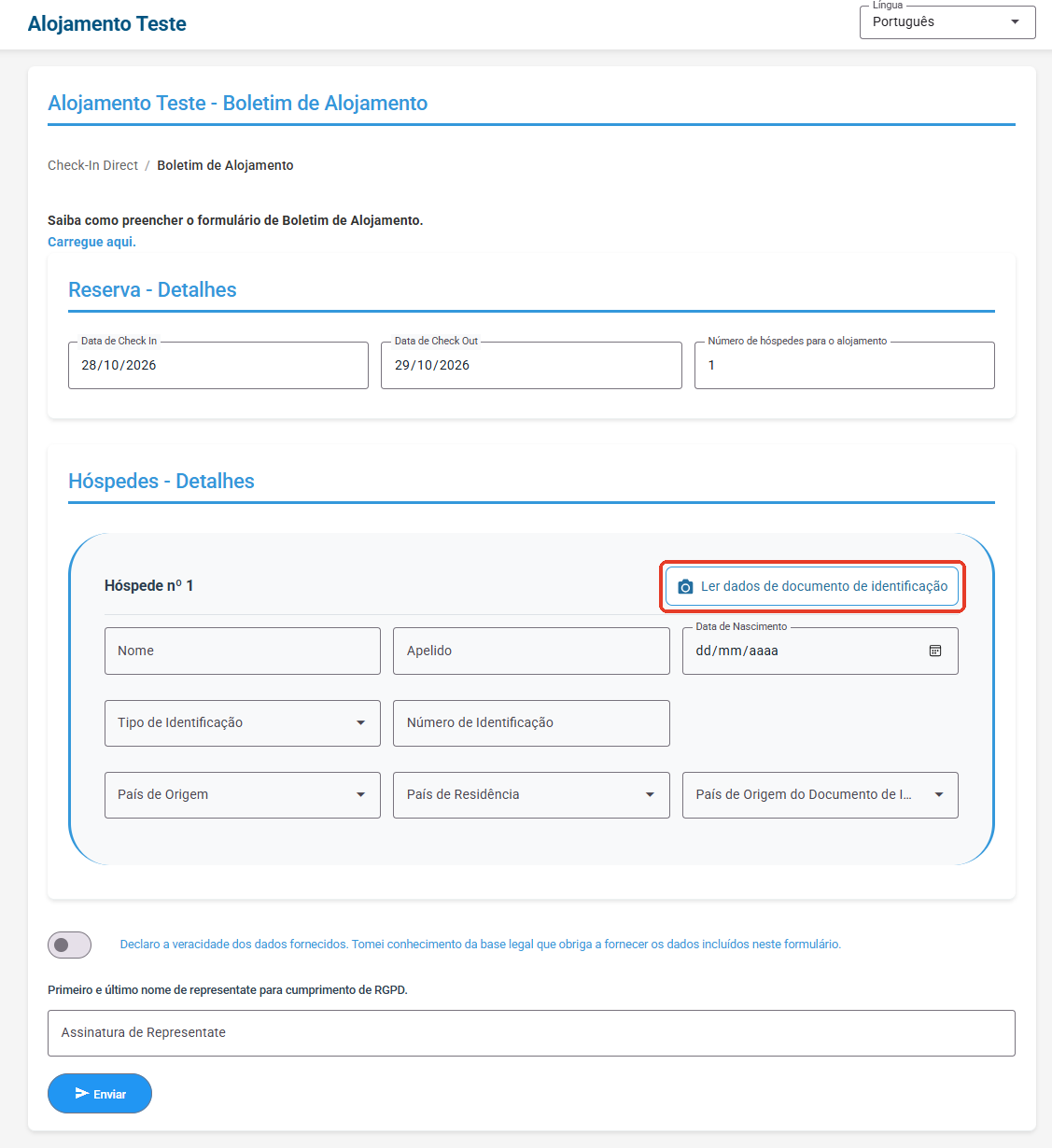
In the guest form, document details can be read automatically. Simply photograph the identity card or passport, or select a file, and the fields will be filled in. Then review the details and submit.
Watch the video: OCR with one document

How to use it
- In the guest form, in each guest’s section (for example, Guest no. 1), click Read details from an identity document.
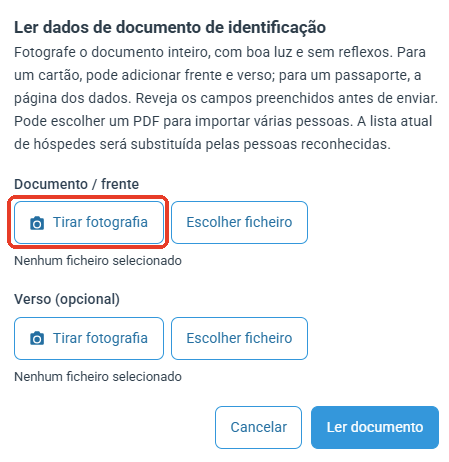
- In the window that opens, click Take a photo or Choose file.
- Click Read document and wait for the scan to finish.
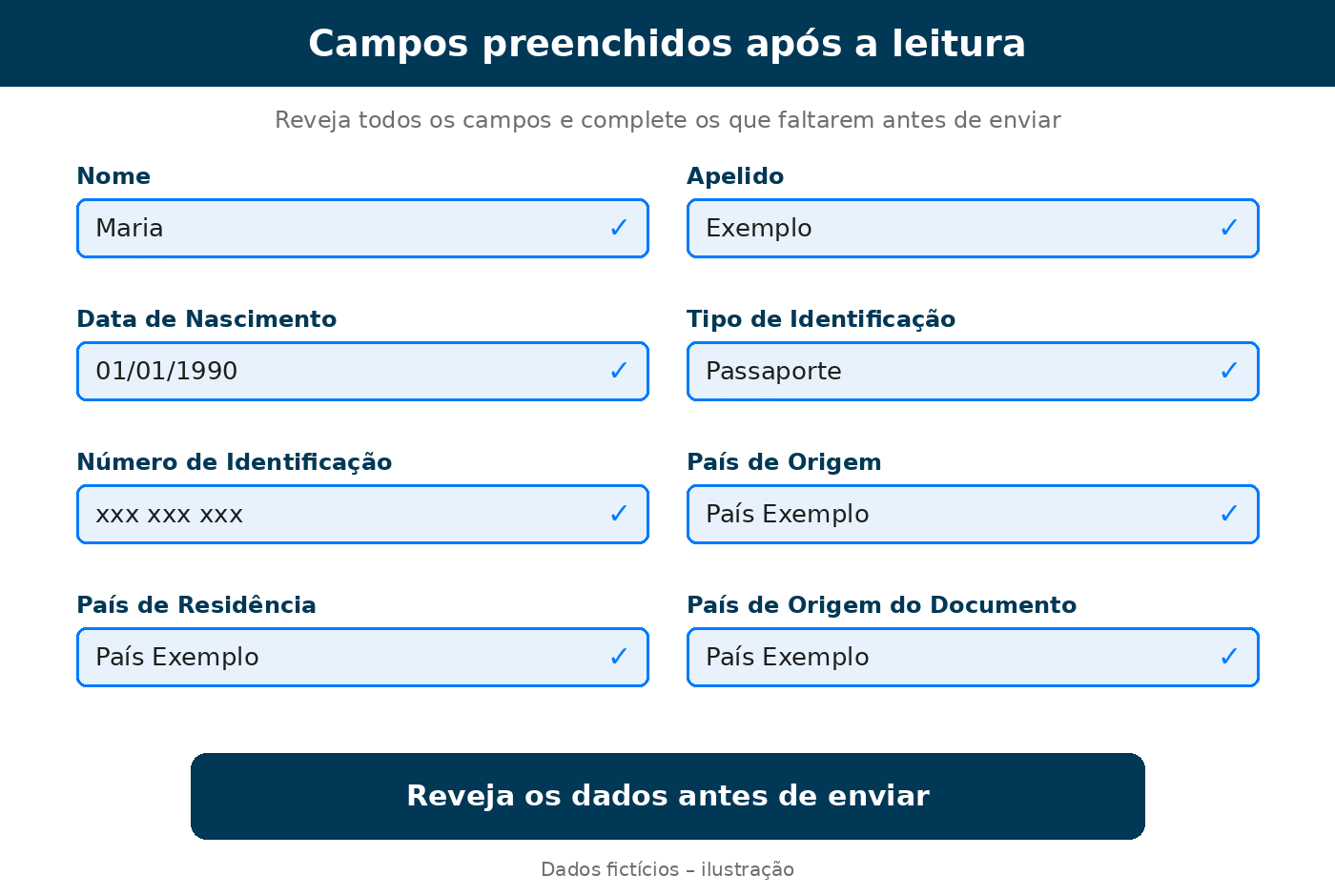
- Review all completed fields before submitting and fill in any missing details.
If the scan fails, the fields remain empty and you can complete them manually. The document image is deleted immediately after scanning. Document scanning is only available in the guest form.
OCR on your phone using a QR code

For a successful scan
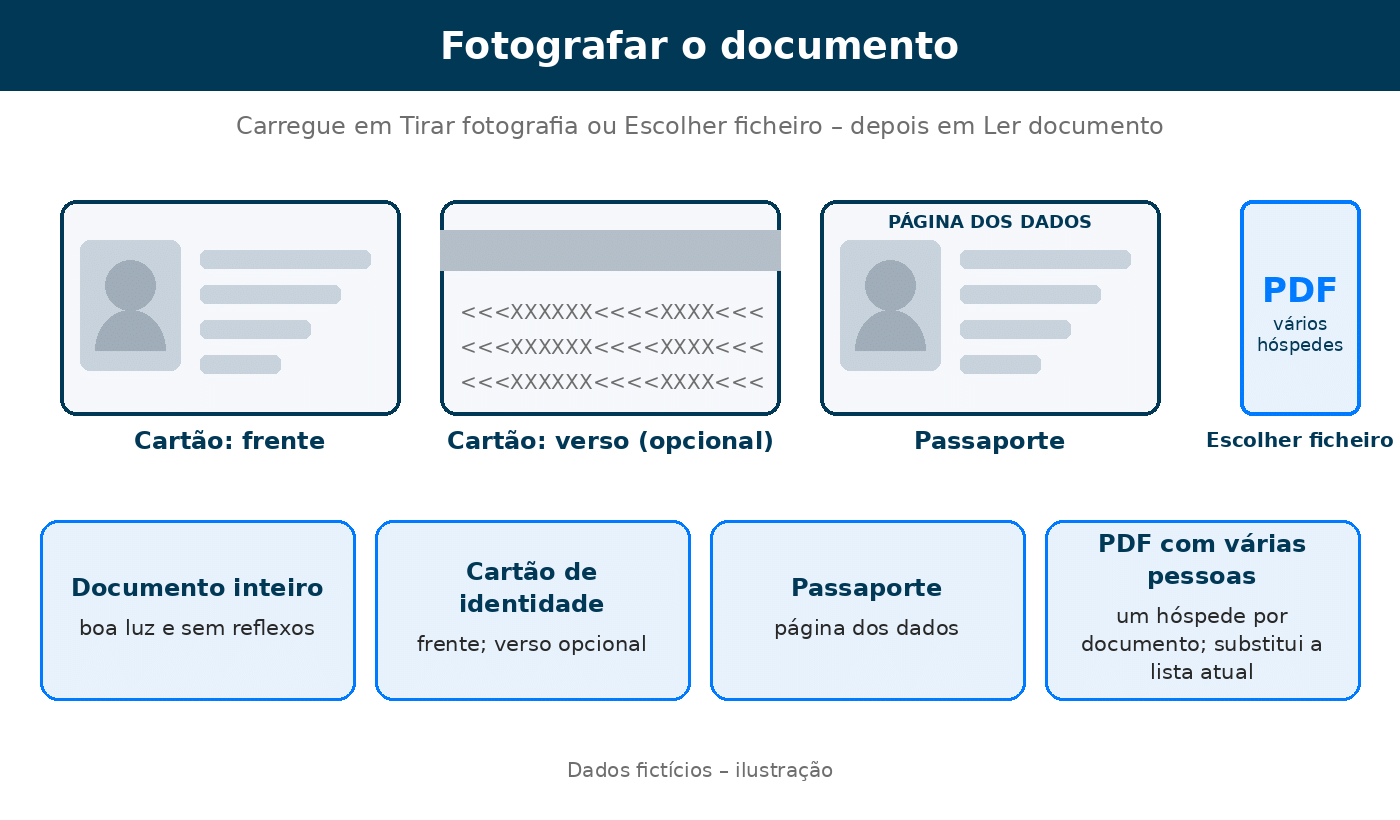
- Photograph the entire document in good light, without glare.
- Identity card: photograph the front; the back is optional.
- Passport: photograph the personal details page.
Import several guests from a PDF
If you select a PDF containing several people’s documents, BA Direto reads them all and creates one guest per document. Please note: importing replaces the current guest list in the form.
Watch the video: OCR with several documents in a PDF

Once the details have been reviewed, the bulletin follows the process described under Accommodation bulletin.